


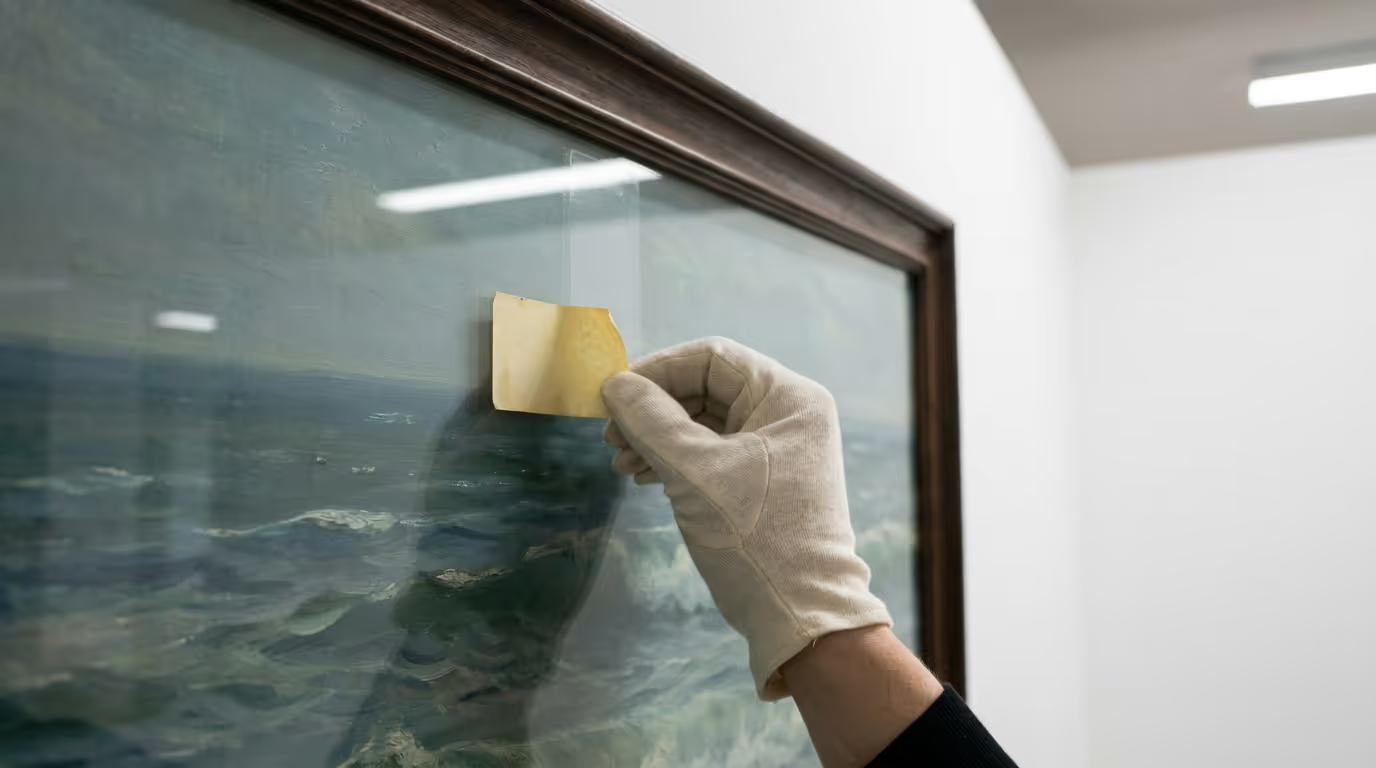

To remove the image title popup in WordPress, delete the title attribute that produces it. Select the image in the block editor, open the Advanced panel in the right-hand sidebar, clear the field labelled “Title attribute” and update the post. For older content, switch to the code editor and strip out the title=”…” text by hand, or add a small content filter that removes image titles across the whole site. The popup is simply your browser displaying the title attribute on hover, so once the attribute goes, the popup goes with it. Modern WordPress no longer adds the attribute by itself, so the problem mostly lives in content written before the block editor arrived.
Why the image title popup appears at all
Hover over almost any element that has a title attribute and your browser will draw a small tooltip after a second or so. That is standard browser behaviour, not a WordPress quirk. Images are simply where people notice it, because images are where WordPress used to plant title attributes in bulk.
On a WordPress site the attribute usually arrives in one of three ways:
- Legacy content from the classic editor era. For years, WordPress copied the Title field from the Media Library straight into the image tag every time you inserted an image into a post. Worse, the Title field was pre-filled from the filename on upload. The result was thousands of sites showing tooltips like “Screen-shot-2012-09-29” to anyone who paused their mouse on a photo.
- A human typed one in. Some site owners filled the Title field deliberately, often because an SEO guide of the day told them to repeat their keyword there. It never worked.
- A theme or plugin injects them. Sliders, galleries and lightboxes sometimes add title attributes at render time so they can display captions, whether you asked for them or not.
WordPress still pre-fills the Title field from the filename when you upload an image today. The difference is what happens next: that text now stays inside the Media Library as an internal label instead of being printed onto the front of your website.
What the block editor does with titles today
The block editor, which arrived with WordPress 5.0 in 2018, writes far cleaner image markup than its predecessor. When you add an image block, WordPress outputs the alt text you provide and nothing else. No title attribute appears unless you open the block’s Advanced panel and type one in on purpose, and hardly anyone does.
That is why this problem has quietly faded for new sites. If you started your site recently, or you are about to (our guide on how to start a WordPress blog covers the setup end to end), you will probably never meet an accidental tooltip.
Older sites are a different story. The title attribute was baked into the post HTML at the moment each image was inserted, and switching to the block editor does not launder old markup. Convert a 2012 post to blocks and the title=”…” text comes along for the ride. If your site has a decade of archives, assume the attribute is scattered all through them.
Alt text and the title attribute do different jobs
An awkward confession first. The original 2012 version of this article described the image title as essential for accessibility. That was wrong then and it is wrong now. The attribute that matters for accessibility is alt, and the two are worth keeping straight:
| Alt attribute | Title attribute | |
|---|---|---|
| Read by screen readers | Yes, reliably | Inconsistently, often not at all |
| Reaches touchscreen users | Yes, through assistive technology | No, there is no hover on touch |
| Available to keyboard users | Yes | No |
| Shown when the image fails to load | Yes | No |
| Used by search engines for image context | Yes | Little to none |
| Worth filling in | Yes, on every meaningful image | Almost never |
The practical rule: write short, honest alt text for every image that carries meaning, give purely decorative images an empty alt attribute, and leave the title blank. If a detail is genuinely worth showing to every visitor, put it in a visible caption rather than hiding it behind a hover that touchscreen users will never see.
The original 2012 fix: one plugin, three steps
This post first appeared on Luckywebs in October 2012, back when founder Mo Rafi was teaching WordPress at Google Campus London. The original article summed up the problem in one line:
Normally the title attribute of an image show up when hovering the mouse over an image.
The 2012 answer was the classic 2012 answer: install a plugin. Specifically, a small plugin called Img Title Removal, in three steps.
-
Go to Plugins, then Add New in your WordPress dashboard.
-
Search for Img Title Removal and press the Search Plugins button.
-
Install and activate the plugin, then refresh your site and hover over an image to confirm the popup has gone.
Job done, as far as 2012 was concerned. Plugins of that era typically worked by removing the attribute with a line of JavaScript after the page had loaded, so the tooltip stopped appearing for most visitors while the attribute itself carried on sitting in the markup underneath. If you enjoy this sort of time capsule, the companion piece from the same month on placing an external link on a featured image has had the same modern rewrite.
What has changed since this was first published
Three things, and together they retire the old advice completely.
WordPress stopped creating the problem. Core no longer copies the Media Library title into the image tag when you insert an image, so the steady supply of accidental tooltips dried up years ago.
The block editor made clean markup the default. Since 2018, a freshly added image block ships with no title attribute at all unless you add one deliberately.
The plugin approach aged badly. Loading JavaScript to hide an attribute that should never have been printed is the wrong layer for the fix. It adds another plugin to update, it does nothing for the markup that crawlers and assistive technology actually read, and it treats a content problem as a display problem. In 2026 the sensible move is the opposite of the 2012 one: remove the attribute at source and keep your plugin list short.
How to remove the popup today, step by step
Work through these in order and stop as soon as the tooltip is gone.
- Confirm the culprit. Right-click the image on your live site, choose Inspect and look at the img tag. If you see title=“some text”, the attribute is in your content. If there is no title attribute yet a popup still appears, a plugin overlay is responsible, so jump to step 5.
- Fix individual images in the block editor. Select the image block, open the Advanced section in the right-hand settings panel, clear the “Title attribute” field and update the post.
- Fix stubborn classic-era markup in the code editor. Open the post, choose “Code editor” from the options menu (the three dots, top right), find the offending img tag and delete the title=”…” portion, quotes and all.
- Strip titles sitewide with a small filter. For a large archive, editing posts one by one is not realistic. Add this to a child theme’s functions.php file or a tiny custom plugin:
add_filter( 'the_content', function ( $html ) {
    return preg_replace( '/(<img\b[^>]*?)\s+title="[^"]*"/i', '$1', $html );
} );
This removes the title attribute from images at output time without touching your stored content, so it is fully reversible. Test it on a staging copy first and keep a backup as a matter of habit. 5. Check your gallery, slider and lightbox settings. Many of these tools read the Title straight from the Media Library and print it as an overlay or caption. Look for a setting along the lines of “show title” and switch it off, or clear the Title on the attachments they use. 6. Clear your caches and retest. Page caching and CDN caching will happily serve the old markup for hours. Purge, hard refresh and hover again.
Does removing image titles help or hurt SEO?
Neither, in any meaningful way. The title attribute carries little to no weight in search, which is exactly why stuffing keywords into it never achieved anything. Alt text is the attribute with real SEO value: it helps search engines understand what an image shows and it is what image search leans on. Keep your alt text descriptive and honest and the image side is covered.
If you want to audit image markup across a whole site rather than page by page, a crawler will list every image with its alt and title attributes in a single pass. We keep our current recommendations in our SEO tools hub, and several crawlers in our round-up of the best free SEO tools handle this job without a paid licence. For the wider process of fixing what an audit turns up, our DIY SEO guide walks through it in plain English.
Frequently asked questions
Does the image title attribute matter for SEO?
No, not in any way worth chasing. Search engines take image context from alt text, file names, captions and the surrounding copy. The title attribute is ignored or given negligible weight, so filling it with keywords gains nothing and removing it costs nothing.
Will removing title attributes break anything on my site?
No. The attribute is optional and purely advisory, so removing it changes nothing about how the image loads, how the page is laid out or how it is indexed. The only visible difference is the missing tooltip. One caveat: if a lightbox or gallery displays titles as captions, clearing titles will empty those captions, so glance at your galleries afterwards.
I cleared the Title in the Media Library. Why is the popup still there?
Because the attribute was copied into the post’s HTML at the moment the image was inserted, back when WordPress still did that. The Media Library field and the post markup are separate things. You need to edit the post itself (steps 2 and 3 above) or strip the attribute at output with the filter in step 4.
Should I install a plugin to remove image titles in 2026?
No. The 2012 version of this article recommended exactly that, and it was reasonable advice at the time. Today the same result takes six lines of PHP or a few minutes in the editor, with no extra plugin to maintain. Every plugin you skip is one fewer update, one fewer potential conflict and one less thing slowing the site down.
What should I write in the Title field when uploading an image?
Whatever helps you find the file again. The Title now works as an internal label for the Media Library, so “Cambridge shopfront March 2026” is far more useful than a keyword string. Spend your effort on the alt text instead, because that is the field visitors and search engines actually use.
Is the title attribute ever the right choice?
Rarely. It is invisible on touchscreens, unreachable for keyboard users and inconsistently announced by screen readers, so no important information should ever live in it. If something deserves to be read, use a visible caption under the image. Captions reach everyone on every device.
A 2012 problem with a 2026 ending
Fourteen years on, the image title popup is a solved problem. WordPress stopped causing it, and cleaning up an older site takes an afternoon at most. That arc says something encouraging about WordPress, and something useful about advice on the internet: even a good tutorial has a shelf life, which is why we are revisiting our archive rather than leaving outdated answers lying around. Luckywebs is a London based UK web and SEO agency, rated 4.7 stars from 60 Google reviews, and untangling WordPress quirks has been part of the job since the Google Campus workshop days. If a hover popup was the loose thread that got you looking at your site’s markup, we are happy to look at the rest of it with you.

This course is helpful and fun. If you are completely new to the topic, you will leave with an understanding of the tools that are available to you and how to start using them. With some practice, you will soon be ready for one more advanced Luckyweb's courses. Rafi is a very patient teacher and he explains tasks in a clear manner so that also complete beginners have the opportunity to follow and learn. This is a fun class with interesting students from different backgrounds and industries. I recommend it to anyone who is new to WordPress and is thinking about building a website with it.
Read more Great experience, very informative. The course was an excellent overview of setting up a website, then Rafi broke down each section into steps to follow. Rafi was very generous with his time overrunning to allow for Q&A. I feel confident now to create my own website Thank you
Read more It's been a great course. If you want to create your first website without, this is a good course to get started. Rafi explained everything by making the learning process easy and has been so professional and kind enough to answer any question.
Read more Rafi is a very experienced and patient teacher. He is adept at explaining how to build a SEO ready website from scratch, explaining the basic concepts you'll need to create the foundations so when you leave the course, you have the confidence to add your own content. I would highly recommend his courses, no matter what skill set you have or website you have in mind.
Read more Rafi WordPress workshop is absolutely good, he is very patient and very knowledgeable. I learned the how to build my website and the difference between plugins and widget which for me as a beginner was unheard of. I particularly appreciated learning how to secure my site he gave us step by step instruction on how to do it as well as recommending trustful sources to find tools and how to search for them on google. Brilliant class I really recommend.
Read more I have been working with Rafi since 2011. firstly with the Enterprise society at University College London, where Rafi run two Wordpress courses during our events. These courses were very well attended and we received very positive feedback. Secondly, Rafi has been helping me build a blog with high profile interviews, targetted at the well-educated public in my home country (Brazil). We've been having Skype sessions combined with screenshare, during which Rafi helped me customise theme, homepage, posts, adding slider images, resizing images, etc.The amazing thing is that Rafi teaches me the steps, so I become independent in building the website. Moreover, Rafi is very approachable and patient. I highly recommend Rafi .
Read more Ever since I've met Rafi at a fashion networking event a few years ago, he has been super helpful in helping me build my website using WordPress. He always answers any questions I might have and makes the whole process of creating, designing and building your website a whole lot easier. I am very happy that he is always there when I need him. His workshops are brilliant, where he makes everything quite straightforward to understand, even if you have little or no experience of websites or coding. I would recommend him at any point. Great job, Rafi!
Read more Have a burning small business project that needs me to personally get directly involved in writing up a website to express the ideas to the final consumers, and then regularily update it. The hand on session Luckywebs has been immensely helpful and has demonstrated that I will be capable of achieving this objective. The instruction was focused relevant and extremely well presented , and will continue with future sessions in the future . Great ! Have a burning small business project that needs me to personally get directly involved in writing up a website to express the ideas to the final consumers, and then regularily update it. The hand on session Luckywebs has been immensely helpful and has demonstrated that I will be capable of achieving this objective. The instruction was focused relevant and extremely well presented , and will continue with future sessions in the future .
Read more Rafi is a great teacher and the course is very informative. Why learn to build a website or blog if it isnt going to be SEO ready? Rafi helps with all of that and has some extra tools as well. I Definetly recommend his class to any newbie!
Read more A great seminar! I will definitely be coming back to update my skills with WordPress and will be bringing friends along who desperately need to build their own websites. Ravi is a great teacher who made everything look so simple. Highly recommend it! Jay Kay
Read more Excellent free workshop hosted in RBKC libraries
Read more I highly recommend this course. It is great for beginners, who have never worked with WordPress before. The course is very intense and informative for a 7 hours session. Rafi was amazing. He was very patient with all of us and made sure we understood every step. I feel confident to finally crate my own website.
Read moreShowing our 12 most recent Google reviews, newest first. No filtering by rating. Read all 60 on Google.